

View Source Code
Browse the complete example on GitHub
What’s inside?
ShareAI demonstrates several key Android and AI integration patterns:- Android Share Intent Handling - Receive shared URLs from browsers and other apps
- Web Content Extraction - Scrape and parse web page content
- Local LLM Summarization - Generate concise summaries on-device
- Privacy-preserving Processing - All content analysis happens locally
- Intent Filter Configuration - Proper manifest setup for share functionality
- Asynchronous Processing - Handle web fetching and AI generation without blocking UI
What it does
The ShareAI workflow is simple and intuitive:- User finds interesting content - Browse any website in Chrome, Firefox, or other browsers
- Share to ShareAI - Tap the share button and select ShareAI from the share sheet
- Automatic extraction - The app fetches and parses the web page content
- AI summarization - LeapSDK processes the content and generates a concise summary
- Read or share summary - View the summary in-app or share it to other apps
Environment setup
Before running this example, ensure you have the following:Android Studio Installation
Android Studio Installation
Download and install Android Studio (latest stable version recommended).Make sure you have:
- Android SDK installed
- An Android device or emulator configured
- USB debugging enabled (for physical devices)
Minimum SDK Requirements
Minimum SDK Requirements
This example requires:
- Minimum SDK: API 24 (Android 7.0)
- Target SDK: API 34 or higher
- Kotlin: 1.9.0 or higher
Dependencies Setup
Dependencies Setup
Add the required dependencies to your app-level
build.gradle.kts:Manifest Configuration for Sharing
Manifest Configuration for Sharing
Configure your This configuration makes ShareAI appear in the share sheet when users share web content.
AndroidManifest.xml to receive shared URLs:How to run it
Follow these steps to start summarizing web content:-
Clone the repository
-
Open in Android Studio
- Launch Android Studio
- Select “Open an existing project”
- Navigate to the
ShareAIfolder and open it
-
Gradle sync
- Wait for Gradle to sync all dependencies
- Ensure all libraries download successfully
-
Install on device
- Connect your Android device or start an emulator
- Click “Run” or press
Shift + F10 - The app will install on your device
-
Share a webpage to ShareAI
- Open any browser (Chrome, Firefox, Samsung Internet, etc.)
- Navigate to an article or blog post
- Tap the browser’s share button
- Select “ShareAI” from the share sheet
- Wait for the app to fetch and summarize the content
-
View the summary
- The app will display a concise summary of the web page
- You can copy the summary or share it to other apps
- Return to the browser or share another page
First Run: The app will download the AI model on first use. This may take a few minutes depending on your connection speed. Subsequent summarizations will be much faster as the model is cached locally.
Understanding the architecture
Intent Handling Pattern
ShareAI demonstrates how to receive and process shared content from other apps:Web Content Extraction
The app uses Jsoup to parse HTML and extract main content:LeapSDK Integration for Summarization
Once content is extracted, LeapSDK generates a concise summary:Complete Flow
The full summarization pipeline:- Receive Intent → Extract URL from share intent
- Fetch Content → Download HTML via OkHttp
- Parse HTML → Extract main text content with Jsoup
- Generate Summary → Process with LeapSDK on-device
- Display Result → Show summary in UI with options to copy/share
Demo
The ShareAI repository includes a screen recording demonstrating the full workflow: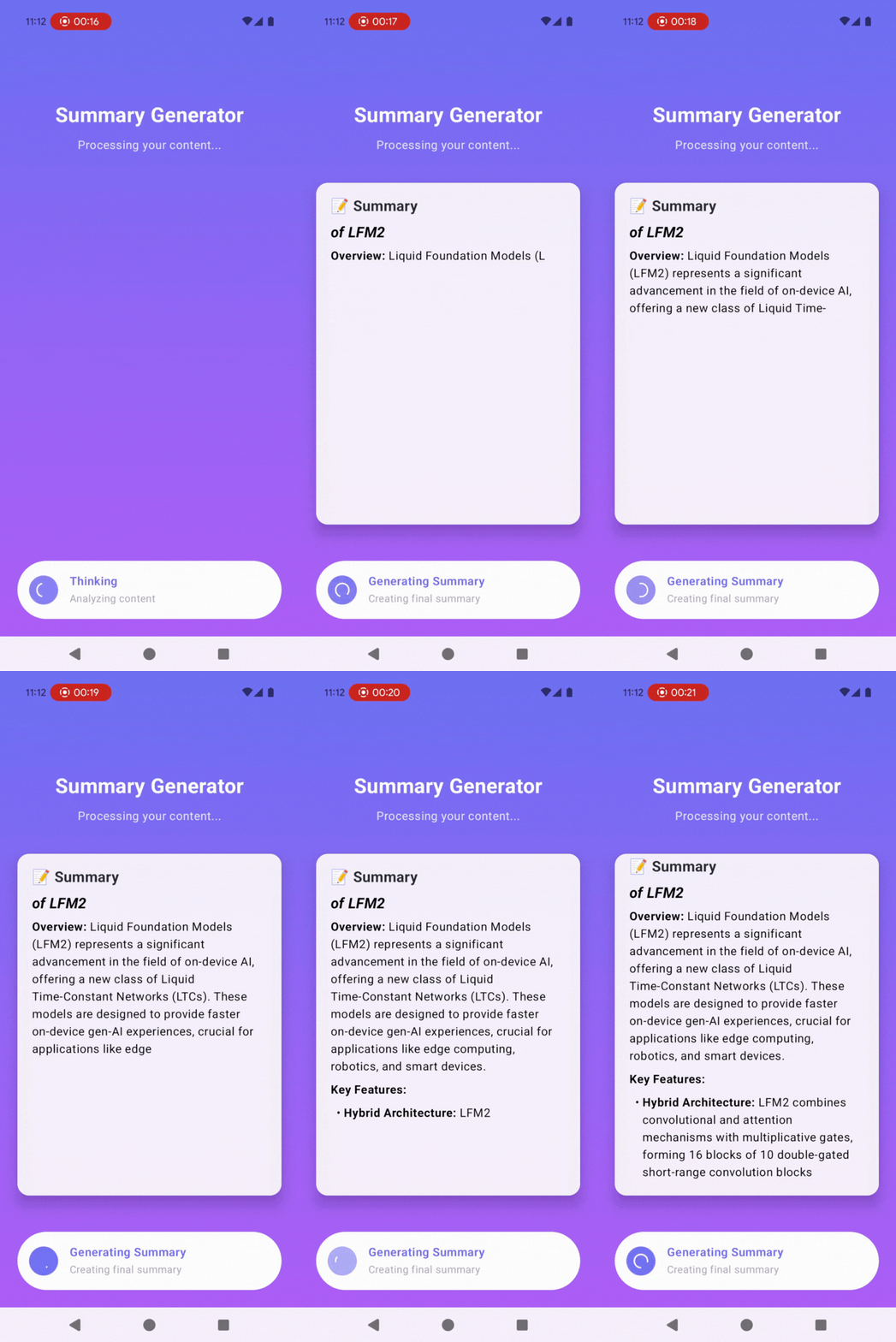 The demo shows:
- Opening a news article in Chrome
- Tapping the share button
- Selecting ShareAI from the share sheet
- The app extracting and summarizing the content
- Displaying the final summary in a clean interface
Results and use cases
ShareAI is perfect for several scenarios: Research and Learning- Quickly summarize academic articles or technical documentation
- Extract key points from long blog posts
- Get the gist of news articles without reading the full text
- Save summaries of interesting articles to review later
- Share concise summaries with colleagues or friends
- Build a personal knowledge base of summarized content
- Summarize sensitive content without sending it to cloud services
- Process work-related articles without data leaving your device
- Read summaries of paywalled content (from accessible portions)
- Decide if an article is worth reading in full
- Scan multiple articles quickly by reviewing summaries
- Stay informed while reducing screen time
Further improvements
Here are some ways to extend this example:- Batch processing - Queue multiple URLs and summarize them in sequence
- Summary length control - Let users choose brief, medium, or detailed summaries
- Language detection - Automatically detect and handle non-English content
- Offline queue - Save shared URLs for summarization when model is available
- Export options - Save summaries as text files, PDFs, or to note-taking apps
- Reading time estimate - Show how long the original article would take to read
- Key quotes extraction - Highlight important quotes in addition to summary
- Topic tagging - Automatically categorize summaries by topic
- Summary history - Keep a searchable archive of all summarized content
- Custom prompts - Let users define their own summarization style
- Image extraction - Include relevant images from the article
- Multi-language summarization - Summarize in a different language than the source
Need help?
Join our Discord
Connect with the community and ask questions about this example.